 Language


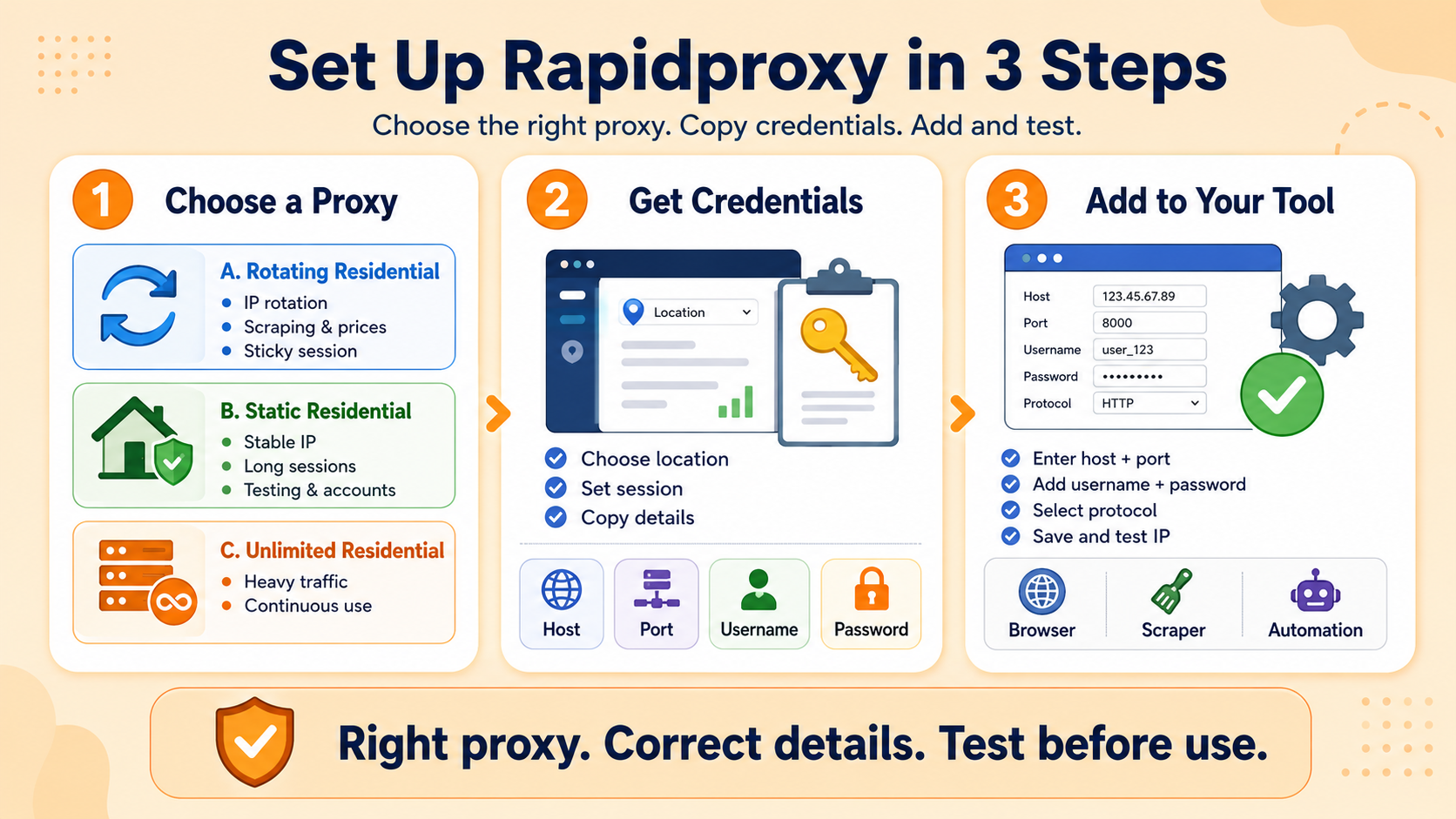
Using a proxy for the first time may seem technical, especially when you encounter terms such as host, port, authentication, and IP rotation. With Rapidproxy, however, the basic setup is simple. You only need to choose a proxy, get your connection details, enter them into your tool, and test the connection.
This beginner guide explains how to complete your first Rapidproxy setup without advanced technical knowledge. It also helps you choose the right residential proxy for web scraping, market research, ad verification, and other location-based tasks.
Step 1: Choose a Rapidproxy Proxy
Start by choosing the proxy type that matches your workflow. The main difference is whether you want IP addresses to change over time or remain stable for longer sessions.
Rapidproxy Rotating Residential Proxies are suitable for web scraping, price monitoring, market research, and other tasks that benefit from proxy rotation. You can rotate IPs across requests or use sticky sessions when you need to keep the same IP temporarily.
If your task requires a consistent IP, Rapidproxy Static Residential Proxies are a better option. They are useful for longer sessions, website testing, account-based workflows, and other activities where connection stability matters.
For projects with heavier traffic requirements, Rapidproxy Unlimited Residential Proxies provide an additional option for larger-scale and continuous proxy usage.
Step 2: Get Your Proxy Credentials
After choosing your proxy plan, open the proxy management section in your Rapidproxy dashboard. Select the location and session settings you need, then generate your connection details.
Your proxy information usually includes four parts — the host, port, username, and password. The host identifies the proxy server, the port determines how your tool connects, and the username and password are used for authentication.
Some applications provide separate fields for each item, while others allow you to paste all proxy details together. Copy the information exactly as it appears in your Rapidproxy account to avoid connection errors.
Step 3: Add the Proxy to Your Tool
Open the proxy settings in your browser, anti-detect browser, scraper, automation platform, or other proxy-compatible software. Enter the host and port, then add the username and password if authentication is required.
If the software asks for a proxy protocol, select the protocol supported by your configuration. Save the settings and use an IP-checking website or test request to confirm that your visible IP address has changed.
Once the new IP appears correctly, your basic Rapidproxy setup is complete.
When Should You Use Proxy Rotation
Proxy rotation is useful when you need to make repeated requests across many pages. Instead of sending every request through the same residential IP, rotating proxies can switch IP addresses during the workflow.
This makes rotating residential proxies practical for web scraping, competitor monitoring, price tracking, and larger market research projects. If your workflow requires the same IP for a period of time, a sticky session or static residential proxy may be more appropriate.
A simple rule is to use rotating proxies when changing IPs is useful and static proxies when consistency matters more.
Using Rapidproxy for Web Scraping and Market Research
Residential proxies can support web scraping workflows that collect publicly available information from different locations. Common examples include product data, pricing information, search results, and competitor updates.
For market research, residential proxies can also help teams compare how websites, prices, products, and online content appear across different geographic markets. Rotating residential proxies are especially useful when the workflow involves larger numbers of requests.
Using Rapidproxy for Ad Verification
Residential proxies can also help with ad verification. Advertisers and agencies may need to check how advertisements, landing pages, and campaign content appear in different countries or regions.
By connecting through residential IPs in selected locations, teams can review localized campaigns from the perspective of users in those markets. Rotating proxies are useful when checking multiple locations, while static residential proxies can provide a more consistent connection for longer verification sessions.
Start Using Rapidproxy in Minutes
Getting started with Rapidproxy does not require complicated configuration. Choose the proxy type that fits your task, generate your connection details, add them to your software, and test the new IP.
For web scraping, market research, or tasks that benefit from frequent IP changes, rotating residential proxies are a practical starting point. If you need a stable IP for longer sessions, static residential proxies are the better choice. Once the basic setup is working, you can explore proxy rotation, sticky sessions, location targeting, and other settings as your workflow grows.




 Flux Stream Network Limited
  RM A5,7/F, ASTORIA BUILDING, NO.34 ASHLEY ROAD, TSIM SHA TSUI, HONG KONG